What Is Scale (CFG) in AI Image Generation?
16
127
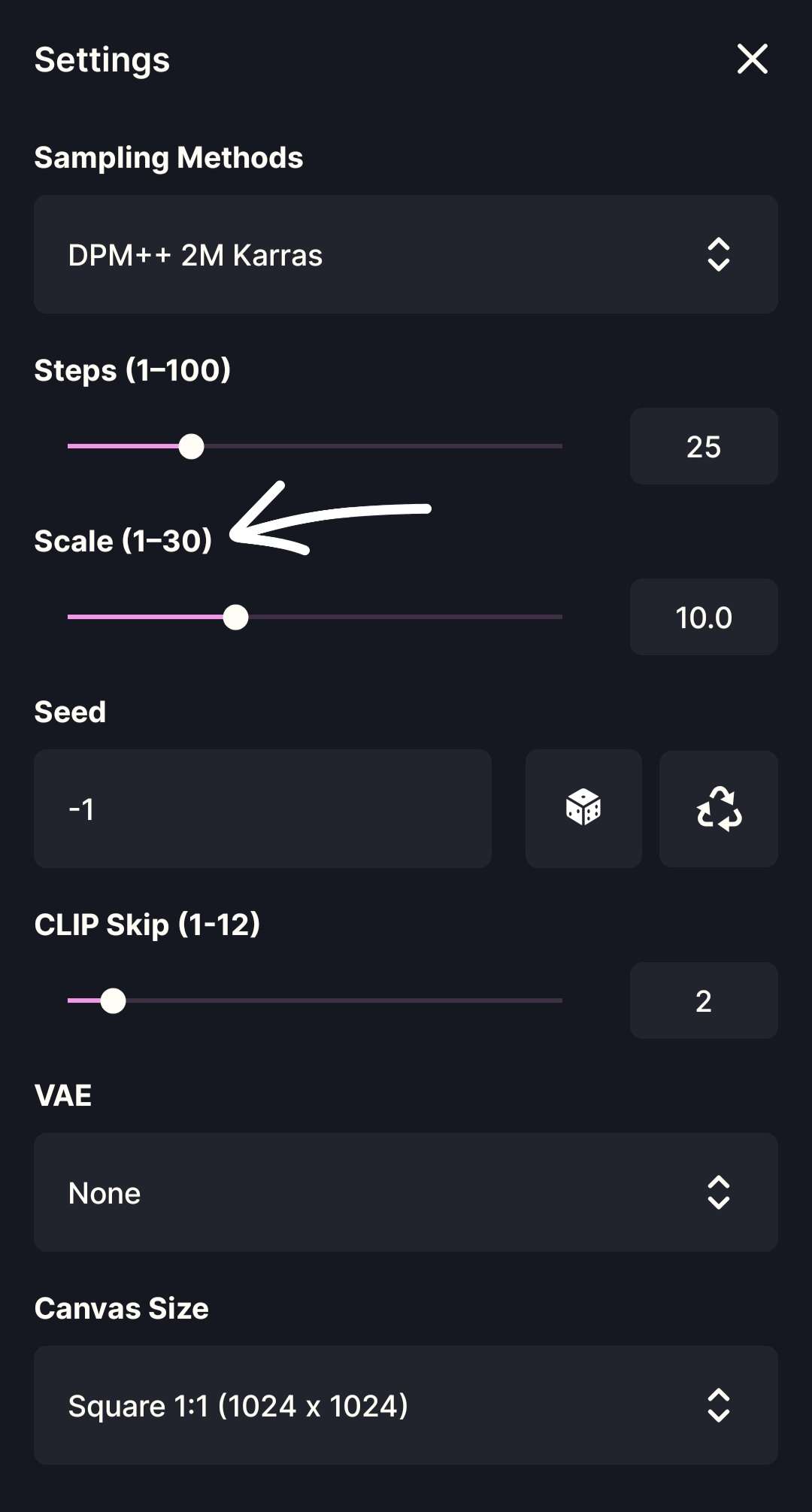
What Is Scale (CFG) in AI Image Generation? In many AI image generation tools, this setting is called simply Scale.Technically, Scale refers to Classifier-Free Guidance (CFG), but you do not need to remember the technical name to use it correctly.
Scale controls how strongly the AI follows your text prompt. In simple terms: ~ Lower Scale → the AI has more creative freedom ~ Higher Scale → the AI follows your prompt more strictly Scale does not directly mean better quality.It only controls how much authority your prompt has during image creation. ___
A Beginner-Friendly Way to Understand Scale
Think of Scale as how strict you are when giving instructions. ~ Low Scale: “Here’s an idea, do whatever feels right.” ~ High Scale: “Follow these instructions exactly.” Scale decides how much the AI is allowed to improvise. ___
How Scale Works (Simple Explanation)
When generating an image, the AI balances two things: ~ What it would generate naturally without instructions ~ What your prompt tells it to generate
Scale controls how strongly the second part overrides the first. ~ Low Scale → gentle guidance ~ High Scale → forced obedience Too much forcing often leads to visual problems. ____
Scale Ranges Explained Low Scale (2–6)
What you will see ~ Softer images ~ More randomness ~ Creative or dreamy results ~ Less accurate prompt interpretation
Best for ~ Experimental art ~ Abstract or fantasy scenes ~ Mood pieces ~ When you want surprises
Downsides ~ Details may be ignored ~ Characters may change ~ Clothing, pose, or style may drift ____
Medium Scale (6–10)
What you will see ~ Balanced compositions ~ Stable anatomy ~ Natural lighting ~ Clear and readable results
Why this range works best The AI follows the prompt while still resolving lighting, anatomy, and textures naturally.
Best for ~ Most LoRAs ~ Character art ~ Emotional or painterly scenes ~ Cinematic images ~ Everyday generation ~ For beginners, this range is strongly recommended. ____
High Scale (12–20+)
What you will see ~ Very sharp images ~ Strong contrast ~ Rigid compositions
Common problems ~ Oversharpening ~ Harsh edges ~ Distorted faces or hands ~ Repeating textures ~ Artificial-looking results
When to use it ~ Prompt testing ~ Technical experiments ~ Very specific compositions ~ High Scale often reduces quality instead of improving it. ____
Recommended Scale Settings
For most models and LoRA workflows, the best results appear around: ~ Scale: 7–9
This range provides: ~ Accurate prompt following ~ Good visual quality ~ Fewer artifacts ~ Consistent results across styles ~ If unsure, start at Scale 7 and adjust slowly. ____
Common Beginner Mistakes ~ Increasing Scale to fix a bad prompt ~ Assuming higher Scale means better quality ~ Using high Scale with multiple LoRAs ~ Scale cannot fix unclear prompts, it only enforces them harder. ____
Final Takeaway
Scale is a balance slider between creativity and control. ~ Low Scale → creative but unstable ~ Medium Scale → balanced and reliable ~ High Scale → strict but fragile Learning how to use Scale correctly is one of the easiest ways for beginners to improve AI image results without changing anything else.
Once you understand Scale, your prompts will work with the AI instead of fighting it._ ____